EasyAR Configuration
The EasyAR configuration page can be accessed from the Unity menu EasyAR > Sense > Configuration or Edit > Project Settings > EasyAR.

This page contains all the global configurations for the EasyAR Sense Unity Plugin.
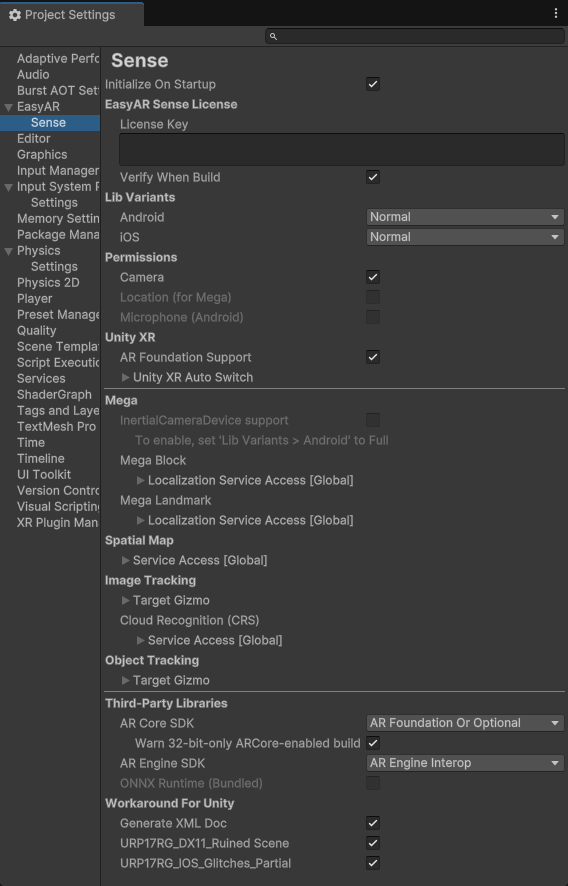
Initialize On Startup
Initialize EasyAR on startup. It is generally recommended to keep this option enabled.
If you disable this option, you need to manually initialize EasyAR Sense. For specific methods, refer to Initializing EasyAR Sense.
EasyAR Sense License
EasyAR Sense License related configuration.
LicenseKey
EasyAR Sense License Key. A valid license is required to use EasyAR features.
It can be left empty only when EasyAR Sense is initialized manually through the interface.
Note
When used on headset devices (Vision Pro, XREAL, Pico, Rokid, Meta Quest, etc.), EasyAR XR License is required.
Note
When using trial products on a custom camera or headset, such as a Personal license, trial XR license, or trial Mega service, EasyAR Sense stops responding 100 seconds after each startup. For Mega users, this duration can be adjusted after approval through EasyAR business. This limitation does not apply to paid versions of EasyAR Sense or paid EasyAR Mega services.
Verify When Build
Verify the license Key when building the Unity project.
When this option is enabled, the Unity project build process verifies the license Key. If the license is invalid on the build platform or does not include the package name set in Unity Player Settings, the build process will fail. If you need to use a license key configured elsewhere or need to modify the package name after the Unity build process, you can disable this option.
Lib Variants
EasyAR Sense library variants configuration.
Only Android, iOS, and visionOS platforms can be selected. Windows and Mac platforms do not support selection and always use the Full variant.
EasyAR Sense usually has multiple variants, and different variants have different features. The library variants integrated in the plugin are compared below.
| Variant | EasyAR Sense variant name | Feature differences | Other notes |
|---|---|---|---|
Normal |
Community/Enterprise | Does not include screen recording, inertial navigation, or Mega Go | |
Full |
CommunityFull/EnterpriseFull | Includes inertial navigation and Mega Go | Larger library file size |
VideoRecording |
CommunityR | Includes screen recording feature (Android only) |
Tip
Some variants that cannot be used in Unity are not listed, such as the iOS CommunityR variant.
Default values:
- EasyAR Mega support package not imported:
Normal - EasyAR Mega support package imported:
Full
Recommended configuration:
Full: use EasyAR Mega or inertial navigation featuresNormal: pursue the smallest package size and do not use EasyAR Mega or inertial navigation supportVideoRecording: need to use screen recording feature (Android only)
Permissions
Configuration for application permissions. It is generally recommended to keep the default settings.
Except for the camera permission, other permission configurations cannot be changed and are determined by other feature configurations.
| Permission | Can be changed | Enable condition | Permission description |
|---|---|---|---|
Camera |
Yes | Camera permission, required to use the camera device | |
AndroidMicrophone |
No | Variant is VideoRecording | Microphone permission, required to use the screen recording function |
Location |
No | Import the Mega support package | (Fine) Location permission, required to use EasyAR Mega |
Unity XR
Configuration related to the Unity XR framework (such as AR Foundation).
AR Foundation Support
The switch for AR Foundation support. It is recommended to keep it enabled.
In rare cases, such as when you need to use AR Foundation 4 or when compilation errors occur due to an update of AR Foundation, you can disable this option. However, all AR Foundation-related functions in the plugin will be disabled at the same time.
Note
The scripts will be automatically recompiled after modifying this option.
Unity XR Auto Switch
Configuration for the function of automatically switching Unity XR (such as AR Foundation) objects.
Editor: Options for the editing modeDisable AR Session: When ARSession exists, disable the ARSession of AR Foundation during editing.
Player: Options for the running modeEnable: Enable runtime control. Note: If you disable this option, the components disabled in the editing mode will not be restored at runtime.Enable If Desktop: Enable on Windows/Mac.Enable If Mobile AR On Startup: When the switcher starts, if the loader of mobile AR (ARKit/ARCore) is active, enable it. Usually, theInitialize XR on Startupoption in XR Plug-in Management needs to be selected for this option.Disable If Non Mobile AR Post Startup: When the switcher starts, if there are other loaders besides mobile AR (ARKit/ARCore) but none of them are active, disable it. Usually, this option is used when theInitialize XR on Startupoption in XR Plug-in Management is not selected.Restore AR Session When Disabled: When the function is disabled, restore (enable) all disabled ARSessions of AR Foundation (regardless of whether they were disabled by EasyAR). This option is usually used to restore the components disabled during editing. For detailed function descriptions, refer to Unity XR Automatic Switching.
Mega
Configuration for the EasyAR Mega function.
Mega Block/Landmark Support
Whether to enable Mega Block/Landmark support.
This option is enabled by default after importing com.easyar.mega and is disabled by default if not imported.
Mega Go Support
Version >= 4003.1
Whether to enable Mega Go on-device positioning support.
This is a read-only option that shows whether the Mega Go function is available under the current configuration.
If the displayed information does not meet your requirements, you need to modify the Lib Variants option as appropriate.
InertialCameraDevice Support
This is a read-only option that shows whether the inertial navigation function is available under the current configuration.
If the displayed information does not meet your requirements, you need to modify the Lib Variants option as appropriate.
ONNX Rumtime
This is a read-only option that shows the ONNX runtime information under the current configuration.
If the displayed information does not meet your requirements, you need to modify the Lib Variants and ONNX Runtime (Bundled) options as appropriate.
Mega Block > Localization Service Access [Global]
Global configuration for the Mega Block localization server.
Mega Landmark > Localization Service Access [Global]
Global configuration for the Mega Landmark localization server.
Spatial Map
Configuration for the EasyAR spatial map function.
Service Access [Global]
Global configuration for the sparse map server.
Image Tracking
Configuration for the EasyAR image tracking function.
Target Gizmo
Configuration for the Gizmos of ImageTarget in the editor.
Enabling these options will display the corresponding gizmos in the Unity Editor. If there are too many targets of this type in the scene, it may affect the startup performance in the editor. The performance when running on the device will not be affected.
Enable Image File: Enable the Gizmos for targets of type ImageTargetController.ImageFileSourceData for ImageTargetController.Source.Enable Target Data File: Enable the Gizmos for targets of type ImageTargetController.TargetDataFileSourceData for ImageTargetController.Source.Enable Target: Enable the Gizmos for targets of type ImageTargetController.TargetSourceData for ImageTargetController.Source.Enable Texture 2D: Enable the Gizmos for targets of type ImageTargetController.Texture2DSourceData for ImageTargetController.Source.
Cloud Recognition (CRS) > Service Access [Global]
Global configuration for the cloud recognition server.
Object Tracking
Configuration for the EasyAR object tracking function.
Target Gizmo
Configuration for the Gizmos of ObjectTarget in the editor.
Enable: Enable the Gizmos.
Third-Party Libraries
Third-party library configuration.
ARCore SDK
ARCore SDK configuration.
ARCore provides motion tracking capabilities on some Android devices. You can read motion tracking and EasyAR features to understand the relationship between EasyAR features and motion tracking, and whether and when ARCore needs to be used.
AR Foundation Or Optional: the ARCore SDK distributed with EasyAR orAR Foundationwill be included in the application, depending on the ARCore XR Plugin settings. This option is generally recommended, and it automatically handles theAR Foundationcase.Optional: ARCore features can be used on devices that support ARCore and have Google Play Services for AR installed.Required: the application can run only on devices that support ARCore and have Google Play Services for AR installed.External: use this option ifAR Foundationor another ARCore SDK distribution is being used. The ARCore SDK distributed with EasyAR will not be used. This option can also be used to completely exclude ARCore SDK use in the application.
Caution
If ARCore SDK is set to Required, or if Requirement is set to Required in the ARCore configuration of AR Foundation, and the packaged application is installed on a device that does not support ARCore, the device will incorrectly report that ARCore is available and run with ARCore. This creates the illusion that these devices are running ARCore but not working properly, for example black screen or other abnormal cases, but this is incorrect.
This happens because Google Play Store prevents applications marked as requiring ARCore from being installed on unsupported devices, so these applications always assume they are running on supported devices.
With normal configuration, these devices will determine during session assembly that ARCore is not supported and will use EasyAR features.
For detailed descriptions of Optional and Required, and other configuration required for publishing applications on Google Play Store, refer to Google's documentation (Mainland China, International).
Note
In EasyAR Sense Unity Plugin, the library files and configuration required for ARCore support are already included in the plugin package. However, to run on a phone, Google Play Services for AR still needs to be installed on the phone.
Three different sources of ARCore SDK can be used:
Use the ARCore SDK distributed with the plugin
The plugin integrates one ARCore SDK version. For details, see ARCore and AR Engine version compatibility. When using EasyAR's ARCore wrapper, AR Foundation does not need to be imported separately.
Use the ARCore SDK from AR Foundation
If you need to use the ARCore SDK from AR Foundation, configure it according to Google's documentation (Mainland China, International). In this case, the
ARCore SDKoption needs to be set toAR Foundation Or OptionalorExternal.Use another ARCore SDK
If another third-party plugin or the project itself distributes an ARCore SDK, these ARCore SDKs can also be used. In this case, the
ARCore SDKoption needs to be set toExternal, and configured according to the requirements of the specific plugin or project.
Warn 32-bit-only ARCore-enabled build
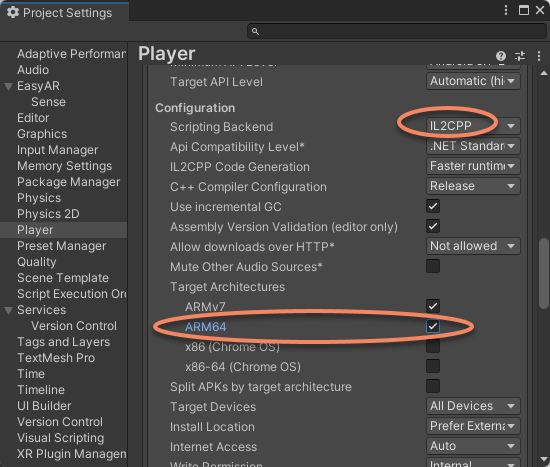
According to Google's documentation, on arm64 devices, applications that only contain armv7 library files will not work properly with ARCore. A warning will pop up during packaging if ARM64 is not selected:
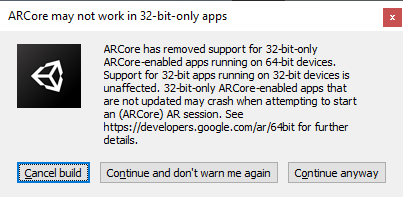
At this point, you need to modify project settings, use IL2CPP compilation, and select ARM64 support.
Caution
If truly needed, you can choose Continue and don't warn me again, or turn off this option. This will disable the packaging-time check. Turning off the check only prevents the prompt during packaging, but runtime abnormalities may still occur on some devices, including but not limited to crashes or black screens.
AR Engine SDK
AR Engine SDK configuration.
AR Engine provides motion tracking capabilities on some Android devices. You can read motion tracking and EasyAR features to understand the relationship between EasyAR features and motion tracking, and whether and when AR Engine needs to be used.
AREngineInterop: AREngineInterop is available. The AR Engine SDK distributed with EasyAR will be included in the application.External: AREngineInterop is available. The AR Engine SDK distributed with EasyAR will not be used.Disabled: AREngineInterop is unavailable. The AR Engine SDK distributed with EasyAR will not be used. All AR Engine-related features will be disabled.
ONNX Runtime (Bundled)
Whether to use the bundled ONNX runtime.
If you need to use a different ONNX version, you can obtain a newer version from the official ONNX source and turn off this option. Using a binary-incompatible ONNX compiled by yourself will cause unknown errors.
Workaround For Unity
Solutions for Unity bugs or unreasonable behaviors.
GenerateXMLDoc
Generate XML documentation when scripts are reloaded so that intelliSense in the API documentation can work.
URP17RG_DX11_RuinedScene
Workaround for URP 17 Render Graph DX11 scene rendering corruption. This option is disabled in Unity 6.2 and later.
URP17RG_IOS_Glitches_Partial
Partially works around Unity Issue UUM-87787.
Issue summary: when obtaining camera textures from EasyAR, as used in the ImageTracking_Coloring3D sample and the ARSession workflow (CameraDevice) sample, visual glitches and artifacts can be observed on iOS/Mac devices. We have reproduced this issue in a pure Unity package and reported it to Unity: Glitches on iOS with AR Camera Image Rendering (URP 17 render graph). For progress, follow updates to Unity Issue UUM-87787 and future Unity release notes.