MegaGoBlockController component reference
Note
This component exists only in version >= 4003.1.
Explore each property in the MegaGoBlockController component window.
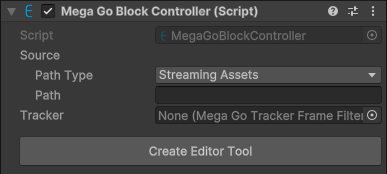
Component screenshot under default conditions.
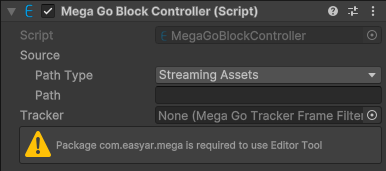
Screenshot when the com.easyar.mega package is not imported and the editor tool is unavailable.
The MegaGoBlockController component window consists of two parts: component configuration and editor tool.
Component configuration
| Property | Description |
|---|---|
| Source | Data source for creating the block. |
| Path Type | File path type. Options:
|
| Path | File path. |
| Tracker | The MegaGoTrackerFrameFilter that loads the target. If set to null, the block will be unloaded from the previously set MegaGoTrackerFrameFilter. It can be modified at any time, and loading only occurs when the session is running. |
Editor tool
Create
Note
The editor tool can be used only after the com.easyar.mega package is imported.
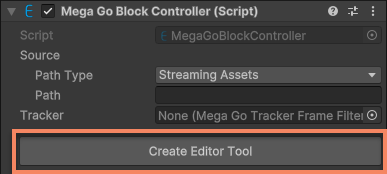
| Name | Description |
|---|---|
| Create Editor Tool | Create the editor tool. |
After clicking Create Editor Tool, an editor tool node is created and the service connection interface is entered.
Connect to service
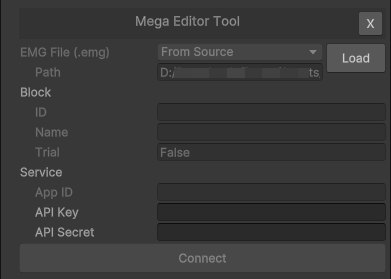
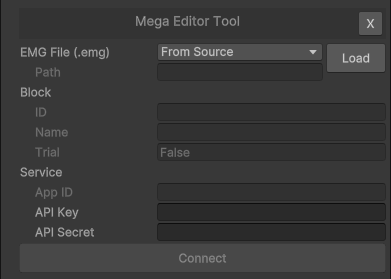
| Name | Description |
|---|---|
| X | Delete the editor tool. |
| EMG File | File source. Options:
|
| Path | Read-only. The EMG file path that will finally be used under the current configuration. If EMG File selects From Source, the absolute path corresponding to Source.Path is displayed; if File Only In Editor is selected, the file path loaded by the Load button is displayed. |
| Load | Load the EMG file. After clicking, the EMG file is loaded according to the current configuration. After loading succeeds, Block information and the service App ID are displayed and are not used for other operations. |
| Block | block information. |
| ID | Read-only. Filled automatically after the file is loaded. block ID. |
| Name | Read-only. Filled automatically after the file is loaded. block name. |
| Service | Service information. |
| App ID | Read-only. Filled automatically after the file is loaded. Service AppID. |
| API Key | API Key. |
| API Secret | API Secret. |
| Connect | Connect to the service. |
After clicking Load, block information and the service App ID are loaded from the file path specified by Path.
After clicking Connect, the Mega block editor tool interface is entered.
Important
Before connecting, check the permission of the API Key and make sure the API Key you use has permission to access the Mega Go service.
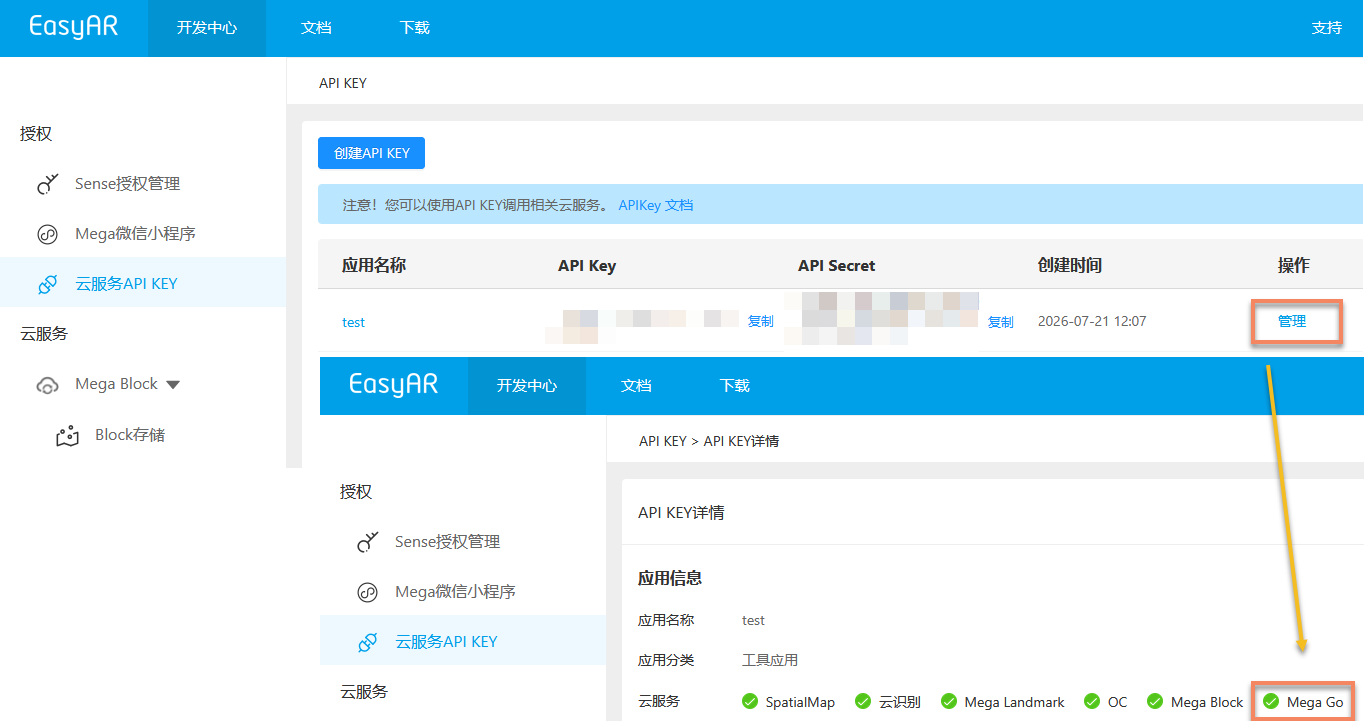
If the permission is insufficient, you will see an error message indicating that service connection verification failed.
