Controlling the Mega Go Tracking Process
This article describes how to control various functions and parameters in the Mega Go tracking process to meet the needs of different application scenarios.
Before You Start
- Check Is My Positioning Function Available? to confirm that the correct map has been downloaded.
tracker's Workflow
The workflow of the tracker is as follows:
flowchart LR
  subgraph startup_graph[Startup]
    direction TB
    sstart((Session startup))
    create[Native creation]
    load(Load target)
    verify[Trial verification]
    init_g[[Initialization]]
  end

  subgraph init_graph[Initialization]
    direction TB
    init_{6DoF initialization successful<br>or non-6DoF}
    init[[Local tracking initialization process]]
    detecting[[Detection]]
    tracking_g[[Tracking]]
  end

  subgraph tracking_graph[Tracking]
    direction TB
    tracking[[Continuous tracking]]
  end

  subgraph stopping_graph[Stopping]
    direction TB
    unload(Unload target)
    dispose[Native destruction]
    sstop([Session stop])
  end

  sstart --> create --> load --> verify --> init_g
  init --> init_ --> |Yes| detecting --> tracking_g
  unload --> dispose --> sstop
  init_ --> |No| init

  startup_graph --> init_graph
  init_graph --> tracking_graph
  tracking_graph --> stopping_graph
The process is roughly divided into several stages:
- Startup:
- After the session starts, the native tracker is created.
- After the target's own Start(), it is loaded into the corresponding tracker.
- For trial data, you need to verify the trial eligibility online. Only after successful verification will you enter the subsequent stages.
- Initialization:
- When using a 6DoF frame source, it enters the local tracking initialization process.
- The local tracking initialization may take some time, which is related to the scene complexity and device performance, and is usually related to the algorithm used at the frame source's underlying layer.
- When using a non-6DoF frame source, the local tracking initialization stage is skipped, and detection starts directly.
- The detection process may take some time, depending on the ease of scene localization and the quality of data collection and mapping.
- Under the default configuration, the content in this stage is not displayed. You can control this behavior through the options of the ActiveController component.
- When using a 6DoF frame source, it enters the local tracking initialization process.
- Tracking:
- The tracker continuously tracks the current block.
- Under the default configuration, only the content under the target node in the tracking state (TargetController.IsTracked ==
true) is displayed. You can control this behavior through the options of the ActiveController component.
- Stopping:
- After the session stops, the target is unloaded, and the native tracker is destroyed.
Adjusting the Device Support Level
The MegaGoTrackerFrameFilter.MinInputFrameLevel property of MegaGoTrackerFrameFilter is used to specify the minimum device level supported by Mega.
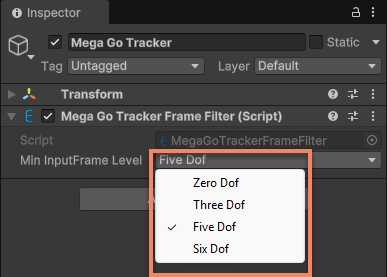
Mega Go can run on almost all types of frame data sources, but different frame data sources have different effects on the tracking results.
By default, Mega selects the highest-level frame data source supported by the device for tracking. The session supporting Mega Go under the default configuration has already configured frame data sources supporting 6DoF and 5DoF.
To support a certain level of frame data source during Mega's runtime, two conditions need to be met:
The required frame data source is in the session's optional frame data source group.
MegaGoTrackerFrameFilter.MinInputFrameLevel is greater than or equal to the CameraTransformType level of the required frame data source. For example, to support 3DoF tracking in the default session, you need to:
Add ThreeDofCameraDeviceFrameSource to the session's frame data source group.
Modify MegaGoTrackerFrameFilter.MinInputFrameLevel to ThreeDof. Another example, to remove 5DoF tracking support from the default session, you need to:
Remove InertialCameraDeviceFrameSource from the session's frame data source group.
Modify MegaGoTrackerFrameFilter.MinInputFrameLevel to SixDof (even if you don't modify it, 5DoF won't be used because there is no 5DoF frame data source). If there is no available frame data source that meets the conditions, the session assembly will fail.
Understanding the Current System Status
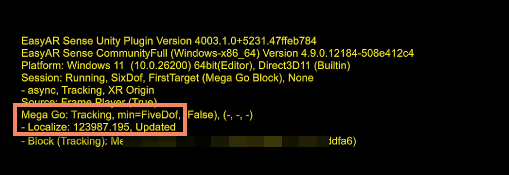
Under the default session configuration, UI messages are displayed on the screen, which contain Mega Go status information.
The tracker status is displayed next to Mega Go:, such as Tracking, VerifyingTrial, etc. During the detection and tracking process, the localization updates are also displayed below.
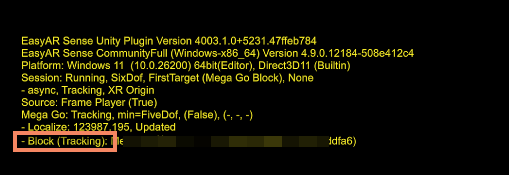
The tracking status of the currently loaded block is displayed below Mega Go: as Block (<trackingStatus>): <name> (<id>). Here, <name> is the block's name, and <id> is the block's ID. The trackingStatus can be Tracking or NotTracking, indicating whether the current block is being tracked.
You can use the MegaGoTrackerFrameFilter.Status property to get the current status and thus understand the tracker's operating conditions. When an error status occurs, you can use MegaGoTrackerFrameFilter.Error to get the error status and perform corresponding processing.
The following code shows how to use these properties and how to handle common abnormal states that the application needs to pay attention to:
void HandleTrackerStatus()
{
    if (tracker.Status == MegaGoTrackerStatus.Error)
    {
        if (tracker.Error == MegaGoTrackerError.ServiceVerificationFailed)
        {
            // Service verification failed. It is recommended to check if the data has expired or become invalid (after converting from the beta version to the official version, the beta version data will become invalid).
        }
        else if (tracker.Error == MegaGoTrackerError.LocalVerificationFailed)
        {
            // Local verification failed. It is recommended to check if the target file is complete.
        }
        else
        {
            // Other errors.
        }
    }
    else if (tracker.Status == MegaGoTrackerStatus.VerifyingTrial)
    {
        // Trial target verification in progress. If the verification cannot be completed for a long time, it is recommended to check the network connection.
    }
    else if (tracker.Status == MegaGoTrackerStatus.VIOInitializing)
    {
        // VIO input initialization in progress. If the initialization cannot be completed for a long time, it is recommended to prompt the user to optimize the usage method.
        // For example: "Please try pointing the camera diagonally forward and move your body carrying the device significantly left and right 5 times."
    }
}
You can use the MegaGoTrackerFrameFilter.LocalizationRespond event to get the localization updates.
Pausing and Continuing
Setting MegaGoTrackerFrameFilter.enabled to false can pause the tracking.
By default, after the tracking is paused, all the content under the block nodes is hidden.
Related Topics
- Best Practices for AR Sessions with Mega Go describes how to create and configure an AR session for Mega Go.
- Adding Mega Go Tracking Targets describes how to add a Mega Go tracking target block and how to load the block model in the Unity editor to assist development.
- Adding a Group of Frame Data Sources describes how to modify the session's frame data source group.
- Getting the Session's Running Results describes how to get the tracking results of the session component.
- UI Messages describes how to use UI messages to display the session status.