Local workspace
When using Mega Studio for Unity development, the tool uses a local workspace mechanism to ensure data security and editing efficiency. When you load Block data from the cloud, the data is actually downloaded into this local space. Editing operations such as placing virtual objects and modifying annotations first occur locally until you manually perform synchronization.
Saving and loading Unity scenes
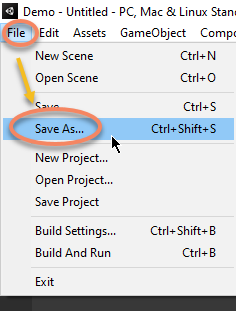
- Save: In the Unity menu bar, click
File->Save As...to save, or directly use the shortcutCtrl + Shift + Sto save the scene.
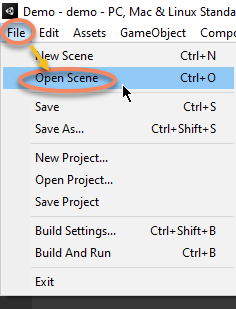
- Load: In the Unity menu bar, click
File->Open Sceneto load a scene, or directly double-click a saved scene to open it. You can also use the shortcutCtrl + Oto open a scene.
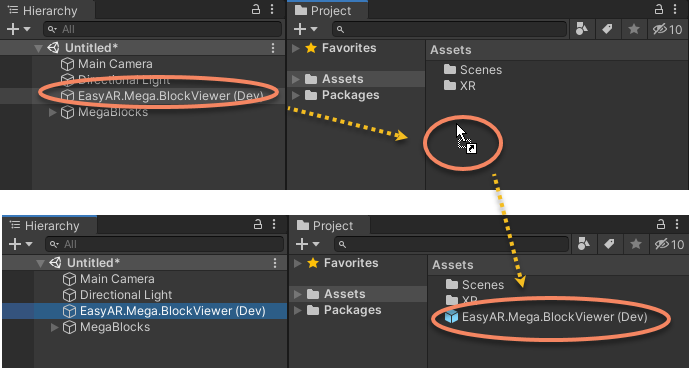
Save the tool node Prefab
Select the EasyAR.Mega.* tool node and drag it into the Assets folder in the Project window, then close the scene directly without saving it.
Next time, create a new scene and drag the saved Prefab from the Assets folder into the scene.
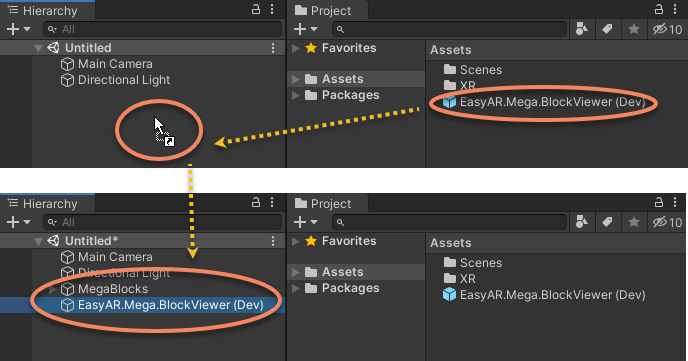
If Block data has already been loaded in the scene when creating the Prefab, you will be prompted to load it the next time it is added to the scene.
Core mechanism
The core mechanism of the local workspace avoids data loss through "manual synchronization". During normal use, before you explicitly press buttons such as upload, download, or service selection in the tool, any local modifications will not be reflected in service data, and any changes to service data will not be immediately updated in the tool.
Data synchronization rules:
- Local \(\rightarrow\) cloud: Any modifications you make in Unity are not automatically saved to the cloud server. You must explicitly click the "Upload" button on the toolbar for the changes to take effect.
- Cloud \(\rightarrow\) local: If data in the cloud changes, such as another person updating the map, these changes will not automatically appear in your editor. You must explicitly click the "Download" or "Refresh" button to obtain the latest data.
Note
If login times out, the tool will automatically log in again. At this time, data such as the Block list may be refreshed, but Block data, annotation data, and other data that require explicit download will not be automatically refreshed.