xr-frame runtime에서 AR scene의 3D 콘텐츠를 로드하는 방법
이 문서는 xr-frame의 resource loading과 node mounting 분리 메커니즘을 자세히 설명합니다. 동적 script를 통해 3D 콘텐츠를 Block node 아래에 유연하게 mounting하여 AR을 구현합니다.
공식 자료
- xr-frame 개발 가이드: WeChat 공식 XR engine 문서.
- xr-frame 공식 예제: 다양한 기본 및 고급 사용 예제를 포함합니다.
공식 자료에는 runtime에서 3D 콘텐츠를 로드하는 방법에 대한 충분한 설명이 이미 있습니다. 이 문서에서는 AR scene에서 자주 사용하는 콘텐츠와 로드 방식을 간단히 설명합니다.
Resource loading vs node mounting
xr-frame에서 3D model을 표시하는 과정은 두 단계로 나뉩니다:
Resource loading:
.glb같은 model file을 네트워크 또는 로컬에서 다운로드하고 memory로 parse하는 것을 말합니다. 이때 model은 준비되었지만 scene에는 보이지 않습니다.Node mounting: scene tree에 node를 만들고 로드된 resource를 해당 node에 연결하는 것을 말합니다. 이때 model이 rendering canvas에 정식으로 나타납니다.
코드로 3D 콘텐츠를 동적으로 로드하는 방법
Resource loading
xr-frame scene의 resource management system을 통해 loadAsset을 호출하여 resource를 수동으로 로드합니다.
parameter의
type은 resource type,assetId는 로드 후 resource id,src는 resource url을 의미하며, 일반적으로 resource hosting server 주소입니다.이후 mounting 및 resource release를 위해
assetId를 기록해야 합니다.try { await scene.assets.loadAsset({type: 'gltf', assetId: 'panda', src: 'url/EasyARPanda.glb'}); } catch (err) { console.error(`Failed to load assets: ${err.message}`); }Node mounting
element.addChild()를 사용해 로드된 model을 ShadowRoot 아래에 둡니다.const root = scene.getElementById("shadow-root"); let panda = scene.createElement(xrFrameSystem.XRGLTF, { "model": "panda", "anim-autoplay": "" } ); root.addChild(panda);ShadowRoot 요소는 xr-frame이 동적으로 node를 생성하고 제거하는 것을 방지하기 위해 특별히 사용하는 root node입니다. 자세한 내용은 Shadow node를 참고하세요.
plugin object가 제공하는 createXRNodeFromNodeAnnotation 메서드는 EMA data에 따라 Block의 child node를 만들 수 있어 3D 콘텐츠가 올바른 공간 위치에 표시되도록 합니다.
const nodeAnnotation = annotation as easyar.ema.v0_5.Node;
const xrNode: xrfs.XRNode = easyarPlugin.createXRNodeFromNodeAnnotation(nodeAnnotation, blockHolder);
let panda = scene.createElement(xrFrameSystem.XRGLTF,
    {
        "model": "panda",
        "anim-autoplay": ""
    }
);
xrNode.addChild(panda);
annotation을 사용하지 않고 Block 아래에 직접 콘텐츠 mounting하기
경고
이 방법을 사용하기 위한 전제는 해당 LocalTransform 값이 xr-frame 좌표계에서 예상한 rendering effect를 구현할 수 있음을 이미 검증했다는 것입니다.
그 외의 경우에는 Unity Editor의 annotation 기능을 사용하십시오.
getBlockById(id)를 통해 scene tree의 block node object를 가져옵니다. 해당 block node가 없다면 이 Block의 localization이 아직 성공한 적이 없다는 뜻입니다(처음으로 이 Block에 localization 성공할 때 node가 자동 생성됩니다). holdBlock(blockInfo, blockTransformInput)로 이 Block의 node를 만들 수도 있고, localization callback에서 이 Block의 localization 성공을 판단한 뒤 콘텐츠를 mounting할 수도 있습니다.
팁
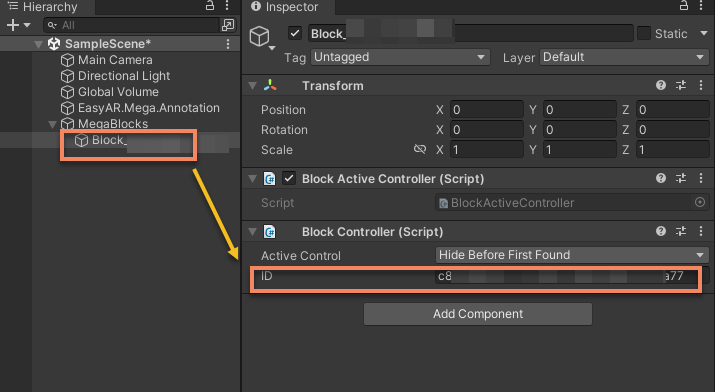
Unity Editor의 scene tree에서 Block node를 선택하고 Inspector panel에 표시되는 ID를 기록합니다
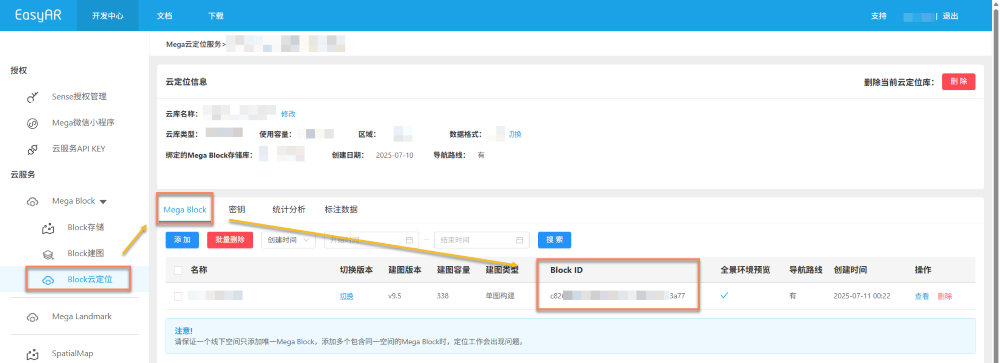
cloud localization library 페이지에서도 Block ID를 찾을 수 있습니다
const blockID = "aaaa1234-bbbb-cccc-dddd-eeeeee123456"
if (!blockHolder.getBlockById(blockParent.id)) {
    // 기존 Block 노드가 없으므로 하나 생성
    blockHolder.holdBlock({
        id: blockID
    })
}
let blockElement = blockHolder.getBlockById(blockParent.id).el;
model node를 지정한 Block 아래에 mounting하고, position.setArray(), quaternion.set(), scale.setArray()를 사용해 model node의 LocalTransform을 수정합니다.
export interface LocalTransform {
    /** @description 위치 */
    position: xrfs.Vector3;
    /** @description 회전 */
    rotation: xrfs.Quaternion;
    /** @description Scale */
    scale: xrfs.Vector3;
}

// Block 아래에 알려진 LocalTransform이 있다고 가정
const targetTransform: LocalTransform;

blockElement.addChild(modelNode);
let modelTransform = modelNode.getComponent(xrFrameSystem.Transform);
    modelTransform.position.setArray([
        targetTransform.position.x,
        targetTransform.position.y,
        targetTransform.position.z
    ]);
    let annoRotation = new xrFrameSystem.Quaternion().setValue(
        targetTransform.rotation.x,
        targetTransform.rotation.y,
        targetTransform.rotation.z,
        targetTransform.rotation.w
    );
    modelTransform.quaternion.set(annoRotation);
    modelTransform.scale.setArray([
        targetTransform.scale.x,
        targetTransform.scale.y,
        targetTransform.scale.z
    ]);
xr-frame이 지원하는 resource type
- Texture texture 및 이미지
- CubeTexture cube texture
- VideoTexture video texture
- EnvData environment
- GLTF models
- Keyframe frame animation
- Atlas
각 resource의 자세한 loading 방법은 WeChat 공식 문서 및 xr-frame 공식 예제를 참고하세요
참고
지원되는 GLTF format 및 extension은 xr-frame 공식 GLTF 사용 설명을 참고하세요