How to Create 3D Content Precise Alignment with the Real Scene Using Mega Studio in Unity
Although xr-frame does not provide 3D editor functionality, you can still use Mega Studio to accurately place virtual objects at a certain position in the real space and precisely align them with the real space in the AR experience.
Before You Start
- Be able to use Mega Studio in Unity.
- Prepare a model: Use the model used in the example project (a cute panda), or use the small robot model used in the official xr-frame Demo, or refer to GLTF Format and Supported Extensions Loadable by XRFame to prepare a model file that meets the requirements of xr-frame.
- Import the model file into Unity.
Tip
The Mega plugin has already added a dependency on com.unity.cloud.gltfast, so you can directly drag the model file into Unity Assets.
Use 3D Content as a Child Node of an Annotation
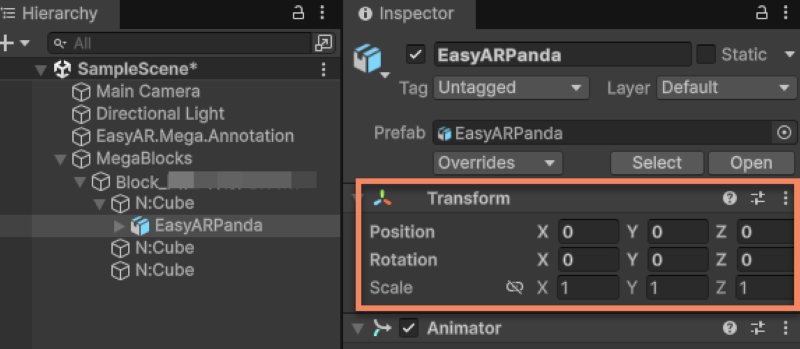
Drag the imported model to the scene node as a child node of an annotation.
Change all the Position and Rotation values in the model's Inspector panel to 0. You can adjust the Scale as needed.
Note
EMA carries all the coordinate transformation logic. Setting the model's Position and Rotation to 0 is to make the geometric center of the model completely coincide with the annotation point. All displacement and rotation adjustments should be done by operating its parent node (the annotation node).
Precisely Adjust the Model's Position
Select the annotation node and adjust the position and rotation of the model in the scene against the dense model.
Note
The Position and Rotation of the model relative to the annotation must always be all 0, otherwise you will not get the correct rendering result on xr-frame.
[Optional] Precisely Adjust the Model's Position Based on the Panorama
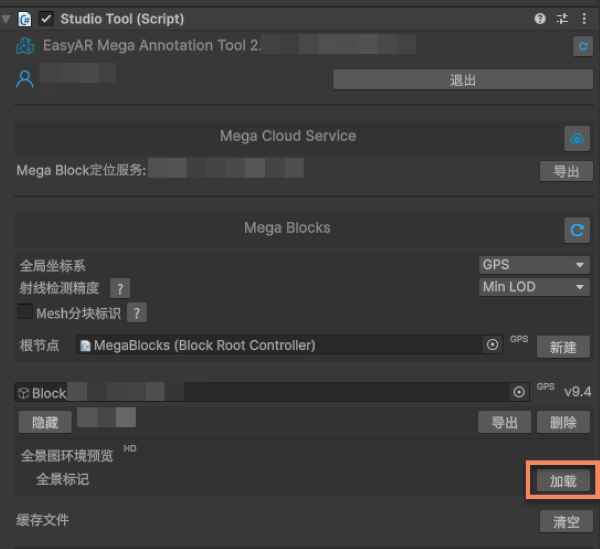
Click the load button on the right side of the panorama marker in the Inspector panel, and the panorama marker will appear in the scene.
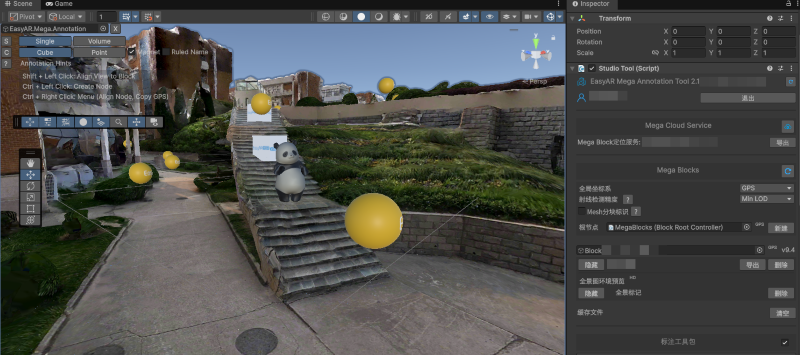
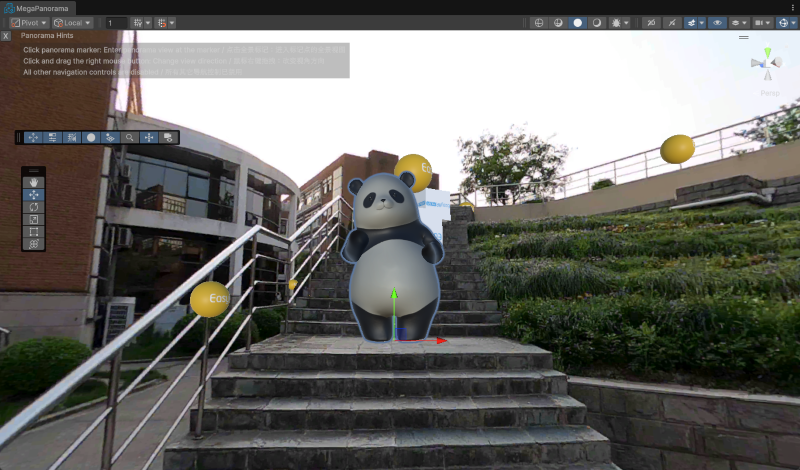
Click any panorama marker to place the model under the panorama at its position. You can switch the position of the panorama to confirm that the position of the model is accurate from different perspectives.
[Optional] Precisely Adjust the Model's Position Based on LCC 3D Gaussian Splats
Note
The content in this section applies to the usage scenario after data collection and mapping using their domain devices. The mapping results of other devices do not contain LCC 3DGS data.
If you have used the LCC 3D Gaussian Splats (their domain LCC) function, you can adjust the model's position against the 3DGS. For the use of LCC data, refer to Load LCC Data and Align with Mesh.
What to Do If the Loaded Block Model Is Not Horizontal
Select Block Root in the Hierarchy panel and modify the Rotation in the Inspector panel until the orientation of the dense model looks correct in the Unity editor.
Important
Block Root is the parent node of all Block nodes on the 3D engine scene node tree.
The Transform of Block Root in the world coordinate system will not affect the local coordinate system of the Block, and therefore will not affect the rendering results of the annotation and the model under the annotation. Its Transform has nothing to do with the final display effect.
What to Do If the Loaded Block Model Has Broken or Missing Parts
During the 3D reconstruction process, if affected by incomplete coverage of the collection perspective, there may be broken or missing parts in the generated dense model.
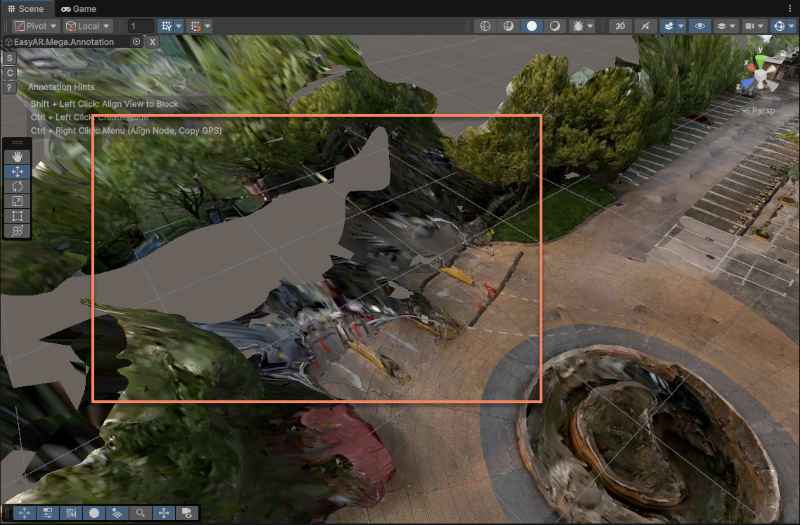
For an incomplete model, if the alignment accuracy requirement for the 3D content of the broken/missing part is not high, you can place the 3D content by clicking the panorama marker and referring to the panorama. Then you can verify the effect by clicking different panorama marker positions nearby.
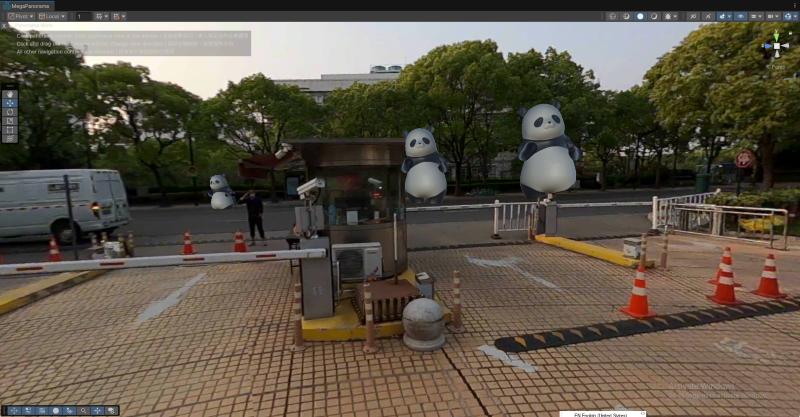
Get the placement result.
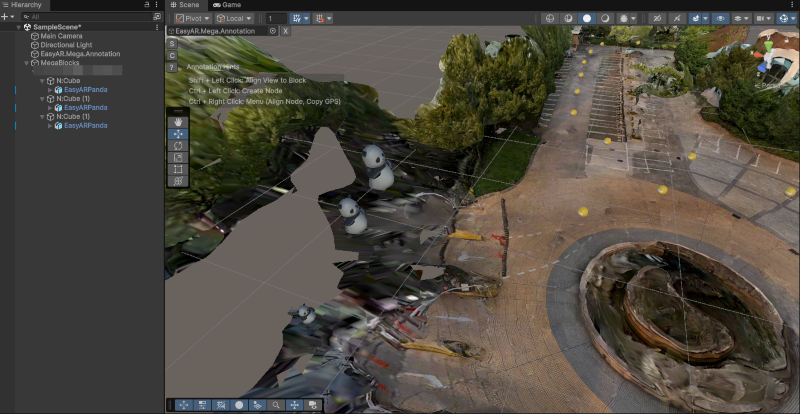
If the alignment accuracy requirement for the 3D content of the broken/missing part is very high, you need to supplement or update the map through supplementary update or lossless full update. Generally, such an area means that it was not covered during the image collection process, and the Mega positioning effect will be affected inside this area. It is not enough to just align the 3D content in the editor.
Next Steps
Related Topics
WeChat Mini-program Mega Plugin: