How to install Unity and use Mega Studio
This article introduces how to install Unity and how to download and load the Mega Unity plugin to use Mega Studio in the Unity Editor.
Install Unity long-term support version (LTS) 2021.3 or later
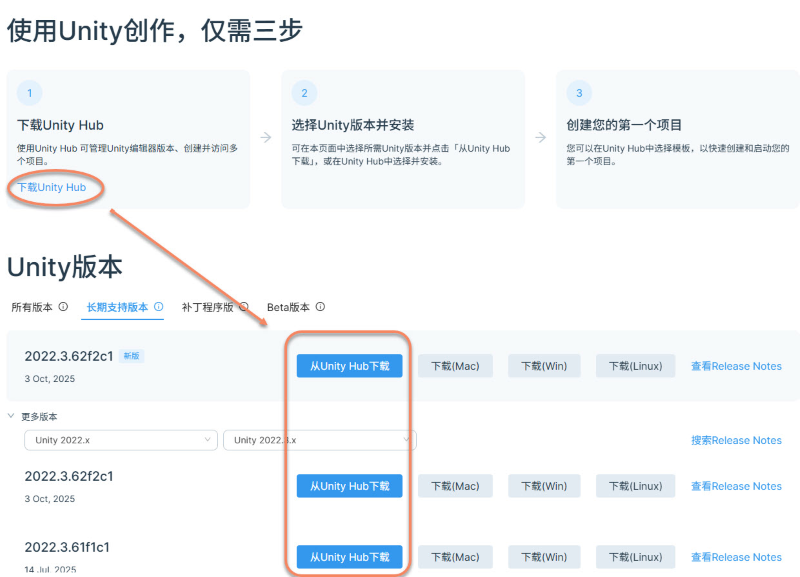
Get the installer from the Unity official website. In mainland China, you can get the installer from the Unity Chinese page. Follow the official instructions to install it.
You can download Unity Hub first, then select a Unity version on the webpage and download it from Hub, or select and install it in Unity Hub.
Create a new Unity project
Use Built-in Render Pipeline.
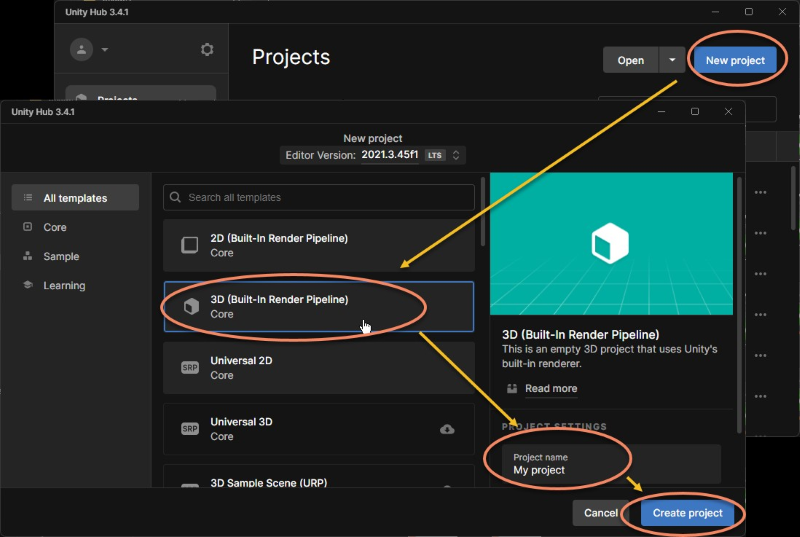
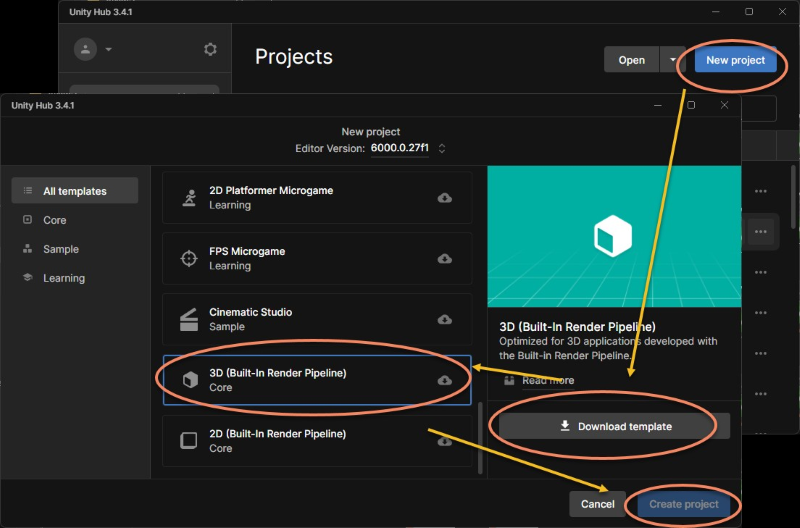
In some versions, such as Unity 6, you need to download the corresponding template before creating the project.
Download the Mega Unity plugin

Log in to your EasyAR account and go to the EasyAR download page.
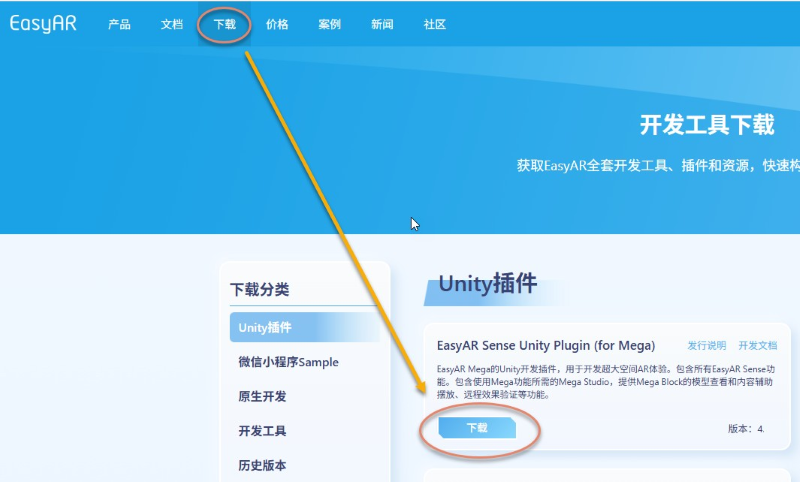
Select and download EasyAR Sense Unity Plugin (for Mega).
Extract the downloaded file. The directory structure is shown below:
Important
Note: do not extract .tgz files. These are Unity packages and must be imported directly through Unity Package Manager.
.
└── EasyARSenseUnityPluginForMega_**.zip         # Complete installer package
    ├── com.easyar.sense-**.tgz                  # EasyAR Sense core library and Unity plugin
    ├── com.easyar.mega-**.tgz                   # Mega support package
    ├── com.easyar.mega.studio-**.tgz            # Mega Studio annotation tool
    ├── readme.cn.txt                            # Chinese readme file
    └── readme.en.txt                            # English readme file
Version number description: ** in the file name represents the version number, in the format Major.Minor.Patch + BuildNum.BuildHash. Use the latest officially released version.
Import packages into the project (UPM packages)
Note
Import the .tgz files through Unity Package Manager. Do not extract them.
Import them in order:
com.easyar.sense-**.tgz
com.easyar.mega-**.tgz
com.easyar.mega.studio-**.tgz
Note
Before importing, it is recommended to copy the .tgz files into your Unity project folder first (for example, store them under the Packages directory).
After importing, do not move or delete these .tgz source files, otherwise Unity will not be able to load the corresponding packages.
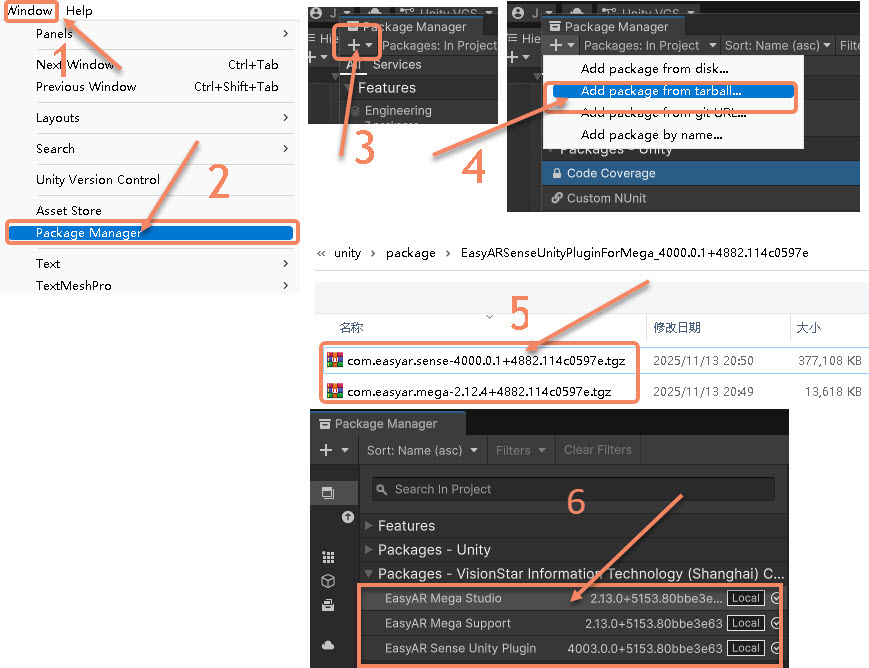
Click Window in the menu bar and select Package Manager.
In the popup, click + in the upper-left corner and select Add package from tarball....
Install the three packages
com.easyar.sense,com.easyar.mega, andcom.easyar.mega.studioin order.The result after installation is shown below.
Create annotation tool
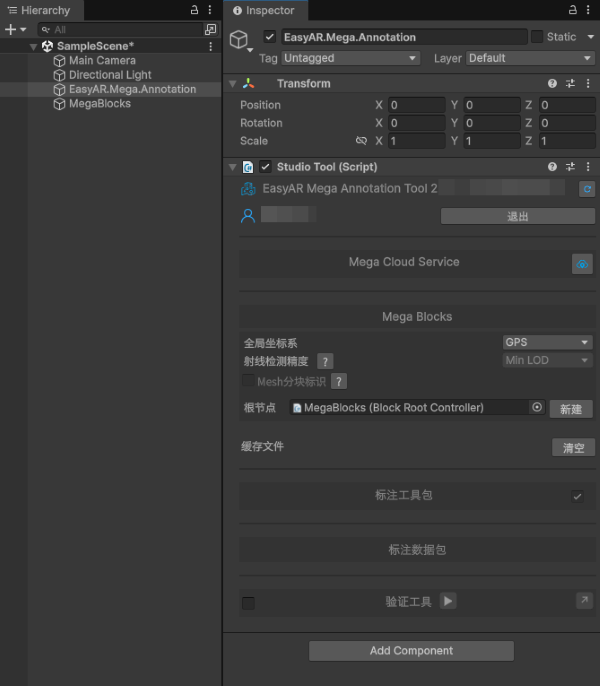
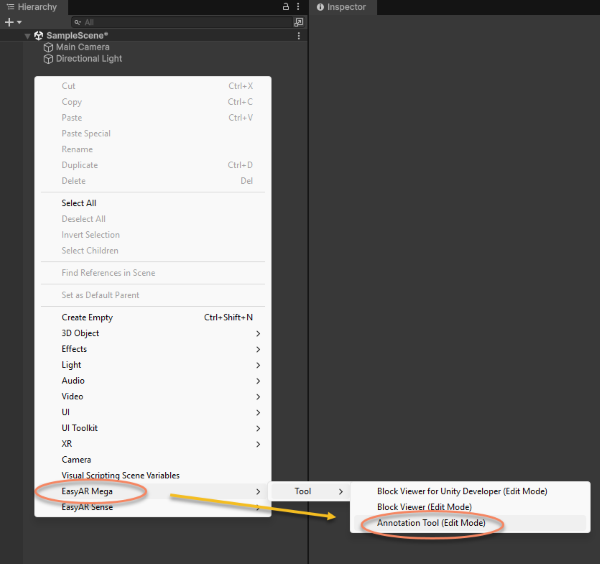
Right-click an empty area in the Hierarchy panel and choose EasyAR Mega > Tool > Annotation Tool (Edit Mode) to create the annotation tool.
Log in and use Mega Studio
Click EasyAR.Mega.Annotation in the Hierarchy panel, enter your EasyAR account and password in the Inspector panel, and click log in.
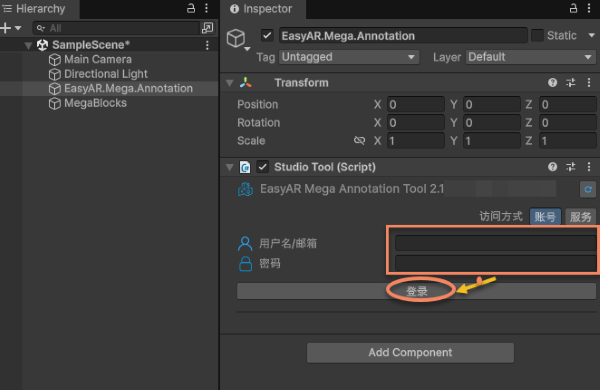
After logging in successfully, you can use the editor functions of Mega Studio.