Mega Go
This article introduces the feature overview, permission activation, resource usage, and Block creation entry on the Mega Go page, helping you quickly understand the page capabilities and basic operation flow.
Activate permissions
When neither the task quota nor the formal area quota has been activated, the page shows:
No available quota: the current account has not activated the task quota or formal area quota. There is no mapping task data available, and new mapping tasks cannot be created. Please contact sales to purchase before use.
After permissions are activated, the create mapping task button becomes available again, and you can create related types of mapping tasks and upload captured data.
Resource overview
The page displays the resource and data overview of the current region, including:
My BlocksFormal area quotaTest mapsFormal maps
Important
When resources reach the limit, the page prompts that no new Block can be created or no data can be converted to formal data. To expand capacity, contact sales.
Create Block
In the Create Block area, you can select the mapping task type according to the source of captured data:
Panoramic camera capture taskPhone capture taskLaser capture task
Block list
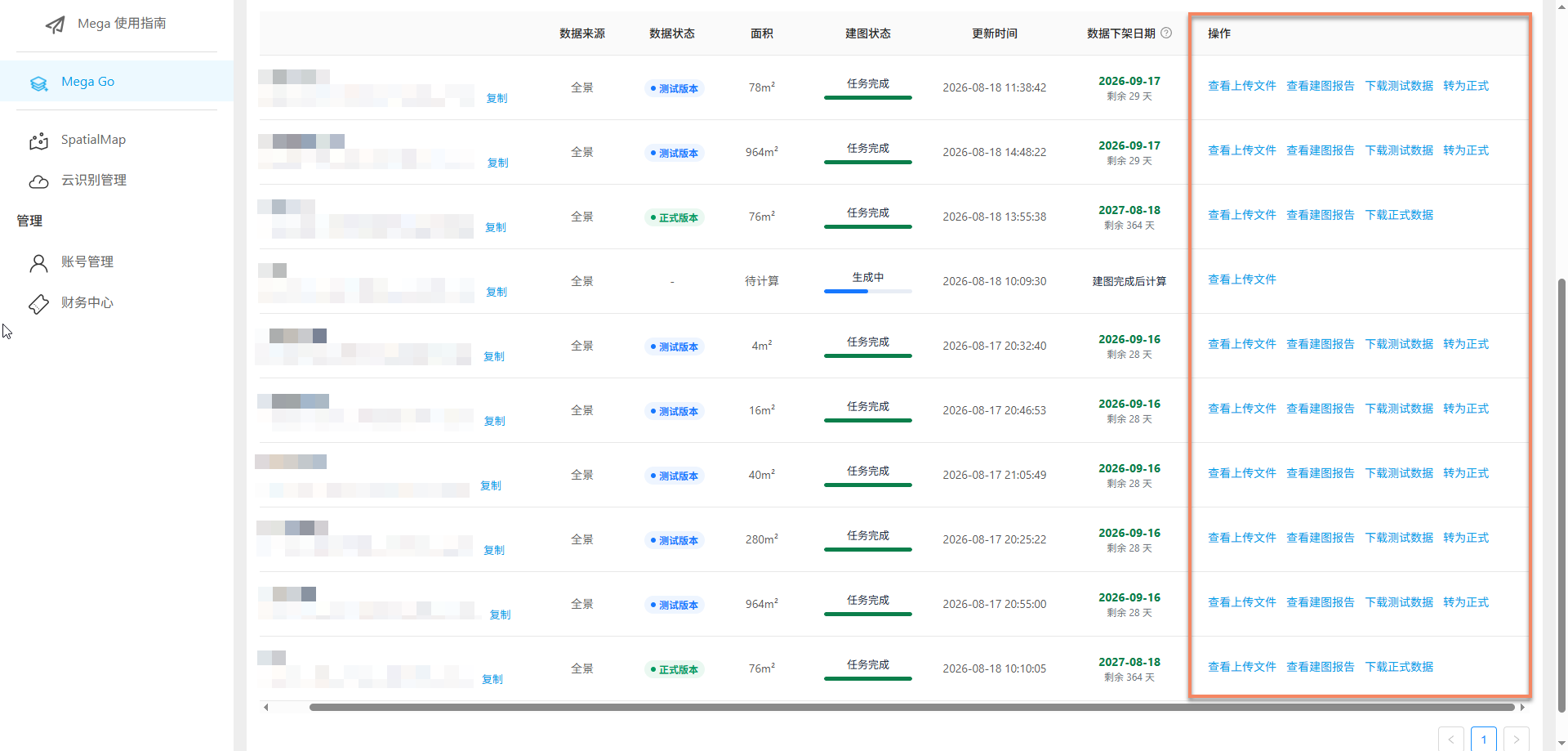
The Block list shows existing mapping data under the region. The list supports searching by name and filtering by data status:
All statusesFormalTest
List fields include name, BlockID, data source, data status, area, mapping status, update time, data offline date, and more.
Map data management
The following operations are available in the Block list. Specific operation permissions vary according to data status, mapping status, and resource quota:
View uploaded files: view the data files uploaded for the current task.View mapping report: view task input, output, failure reasons, and other information.View Block online: view the mapping result Block online. Only mapping version >= 9.4 is supported. For detailed instructions, see View Block online.Download mask file: download low-precision and standard-precision mask files. Only mapping version >= 9.6 is supported.Download test data/Download formal data: download the corresponding data files.Convert to formal: convert test data to formal data.Delete: delete the Block task.
Data validity period
The Mega Go page shows validity rules for test data and formal data:
- Test data is retained for 30 days from the generation date. Complete all testing within the validity period. After expiration, the data automatically becomes invalid, cannot be used for further testing, and cannot be converted to a formal version.
- Formal data is valid for 365 days from the effective date and is automatically taken offline after expiration. Back up and retain the data before it expires to avoid impact on business use.
Related topics
For detailed creation and upload flows of different task types, see:
For related Block operations, see: