Simulate 3D content effects
This document describes how to use the simulation run function of Mega Studio on a computer to load annotation data and 3D models and view the overlay effect of virtual content in the real world.
Note
The following content and tools are not applicable to Unity application development.
If you are developing a Unity application, refer to Using the session verification tool for simulation runs in the development guide.
Preparation before annotation
Before you start creating annotations, make sure the corresponding environment and data are ready.
If you need to display annotation data during localization, you can use the annotation component for annotation. Before this, you should have completed EIF data acquisition and completed the software environment configuration preparation as described in simulation run.
Annotation data workflow
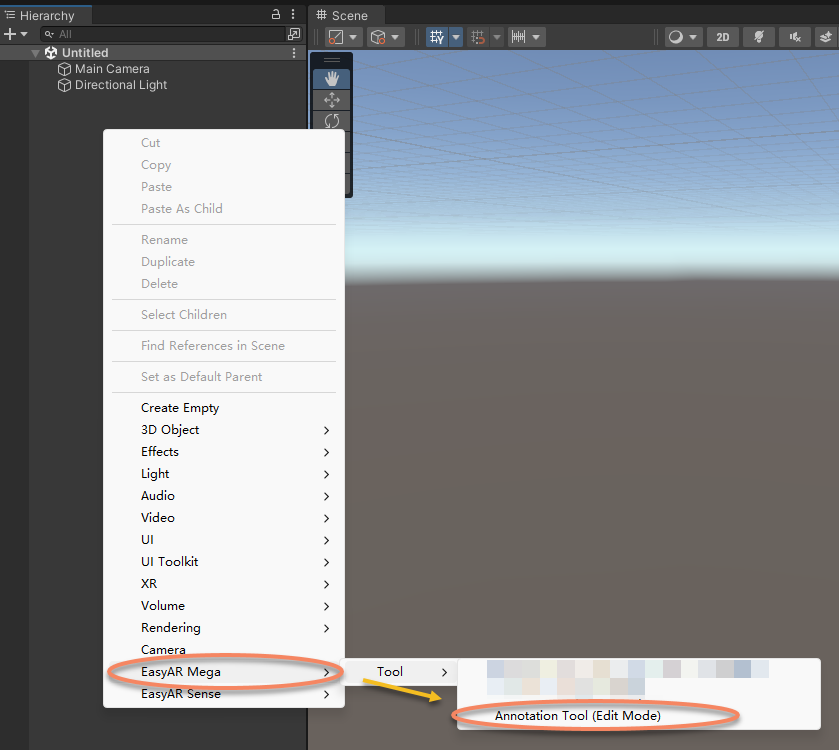
Right-click an empty area of the "Hierarchy" panel on the left and import "Annotation Tool(Edit Mode)".
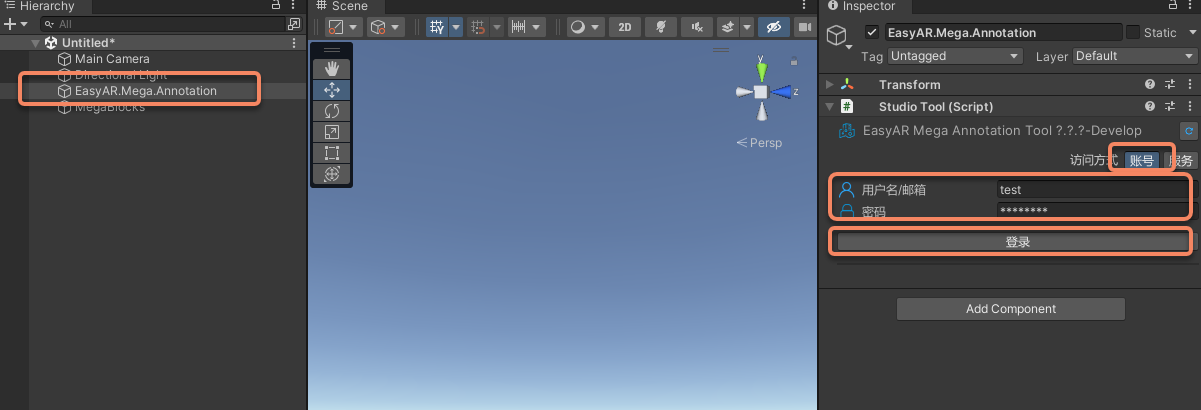
Select "EasyAR.Mega.Annotation" in the "Hierarchy" panel on the left.
Enter your EasyAR account name and password in the "Inspector" panel on the right.
Click "Log in".
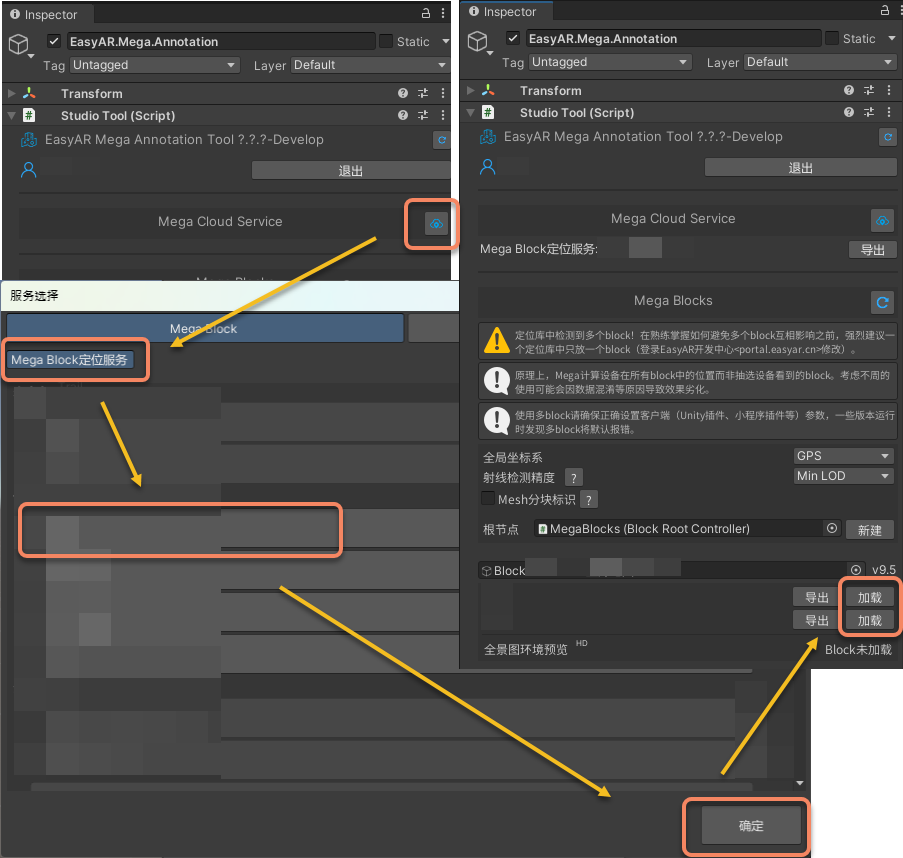
In the "Inspector" panel on the right, click the icon after "Mega Cloud Service".
In the window that opens, select a "Mega Block localization service".
Click "OK".
In the "Inspector" panel on the right, click "Load" to add the map to the Unity project.
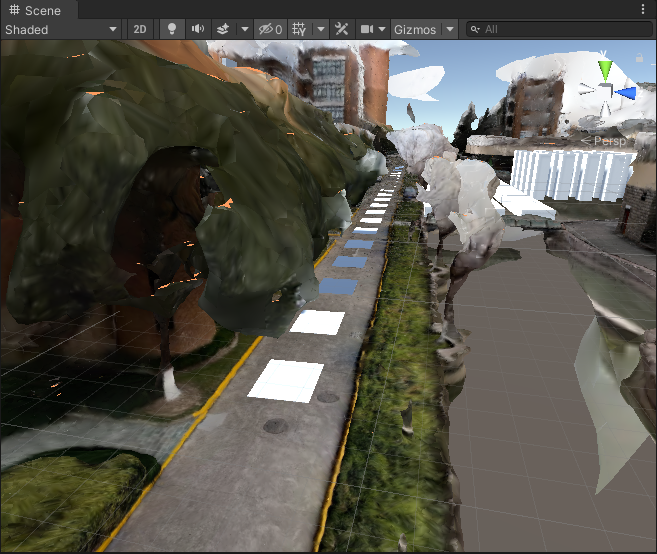
Create annotation data.
At the spatial position that needs annotation, press Ctrl and the left mouse button at the same time to create an annotation cube.
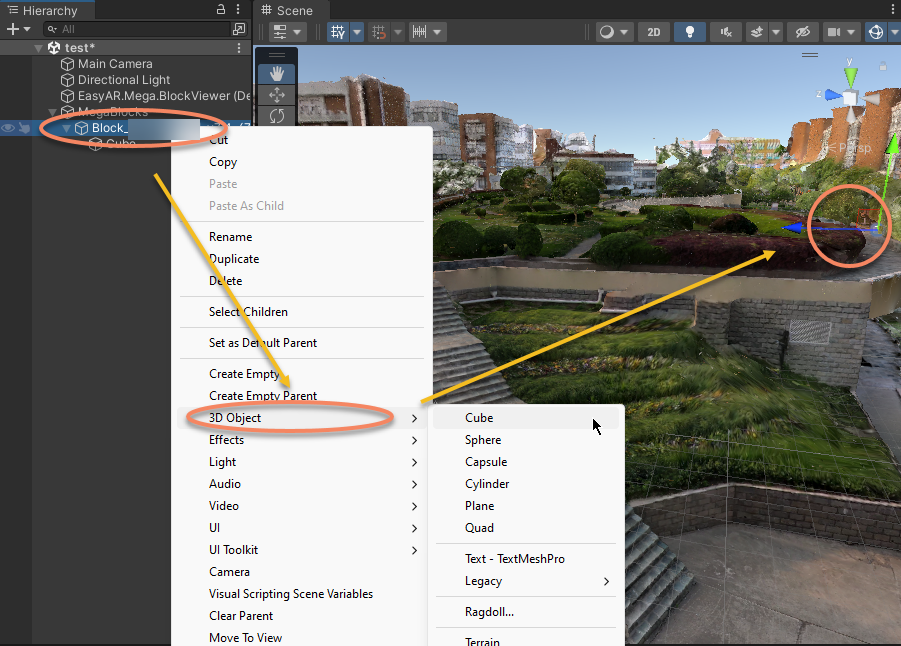
Create a 3D object through the right-click menu. Note that the 3D object must be placed under the Block node.
Directly import a pregenerated model.
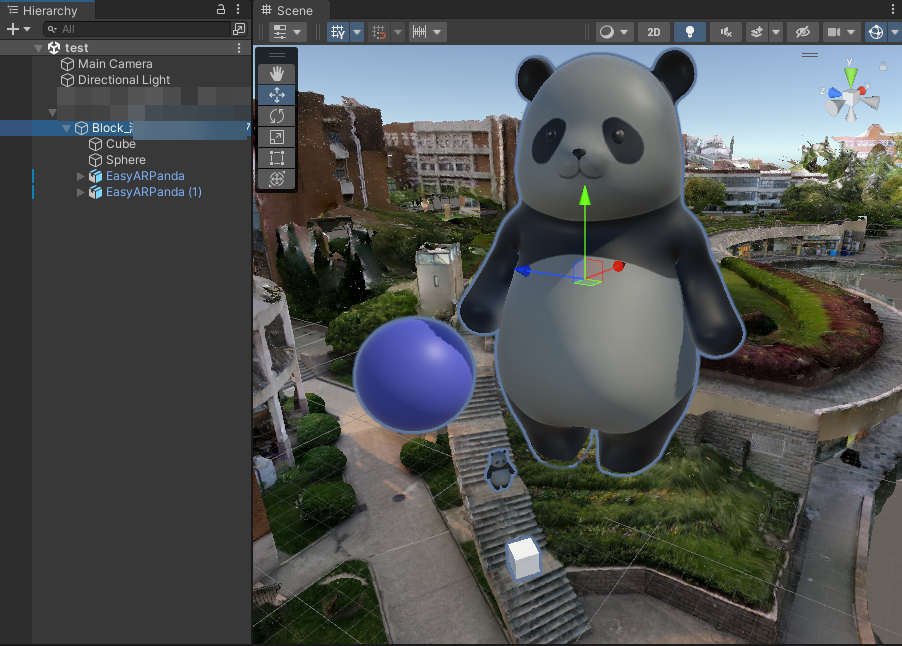
Select "EasyAR.Mega.Annotation" in the "Inspector" panel on the left, then click the icon after the annotation data package in the "Inspector" panel on the right.
Use annotation data to view localization effects
This part is similar to simulation run. For more detailed steps, refer to the previous chapter.
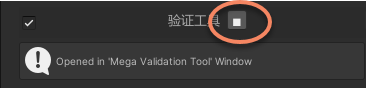
First enable the tool, then click the run button to start.
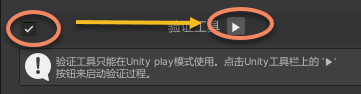
You can also start it through the button on the Unity toolbar.

Open and automatically play the EIF.
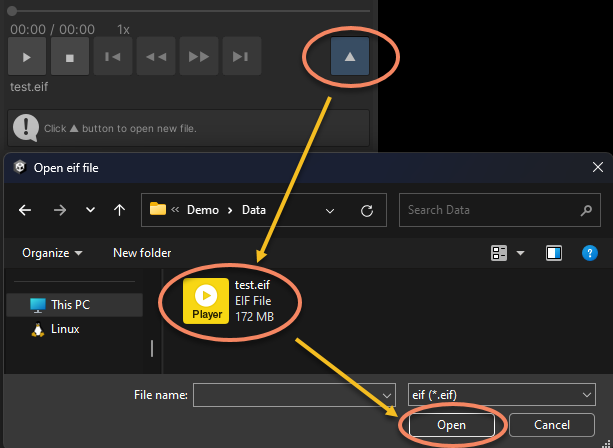
Control playback as needed. Usually the effect looks like this:
You can also completely hide the Block model, so the effect is consistent with what you see in the real scene.
Stop running through the tool button.
Related topics
For more detailed Mega Studio operations, refer to the Mega Studio operation manual.