Verify on site with Mega Toolbox (WeChat Mini Program)
This article explains how to use the Mega Toolbox WeChat Mini Program to verify localization in the target area.
Before you begin
Complete the following preparations before on-site verification:
- Collect map data in the target area and complete Block construction.
- Configure the cloud localization database, add the Mega Block to be verified, and wait for completion.
- Prepare a phone with WeChat installed and an internet connection, and go to the site corresponding to the target Block.
View the result
Scan the QR code below with WeChat to open the Mega Toolbox WeChat Mini Program.

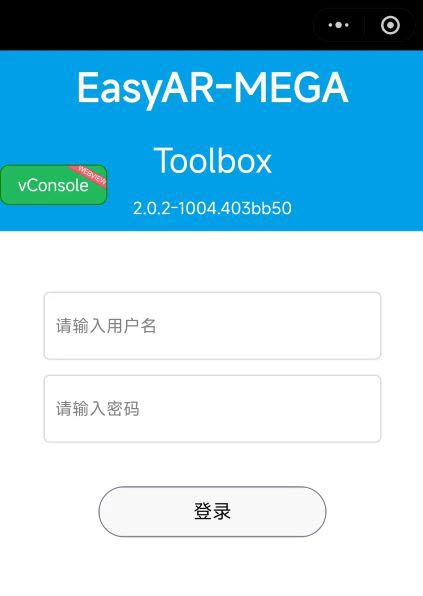
- Log in to your EasyAR account in the Mini Program.
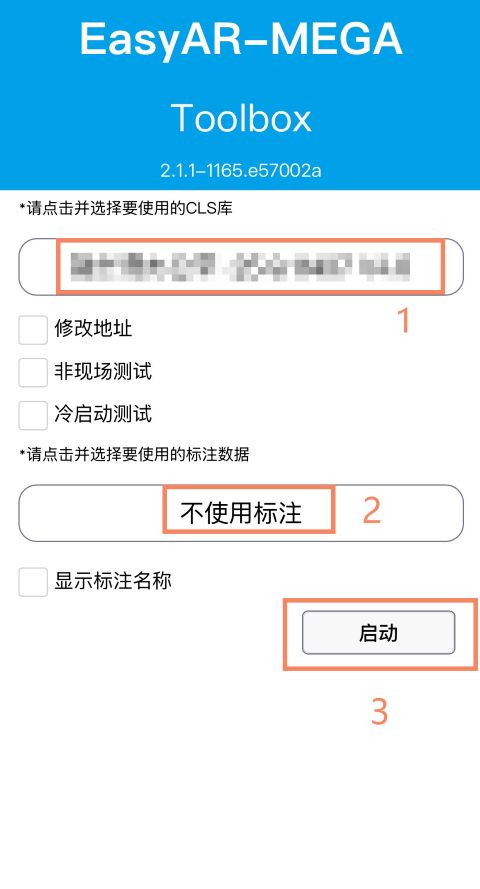
- Select the cloud localization database to verify. If you only need to verify localization, select
Do not use annotations, leaveOff-site testunchecked, and clickStart.
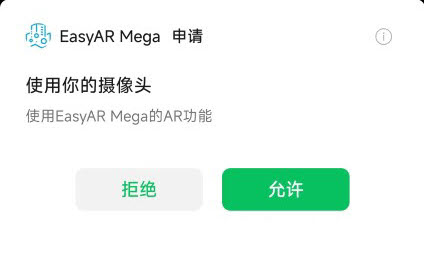
- Grant camera and location permissions when prompted by WeChat.

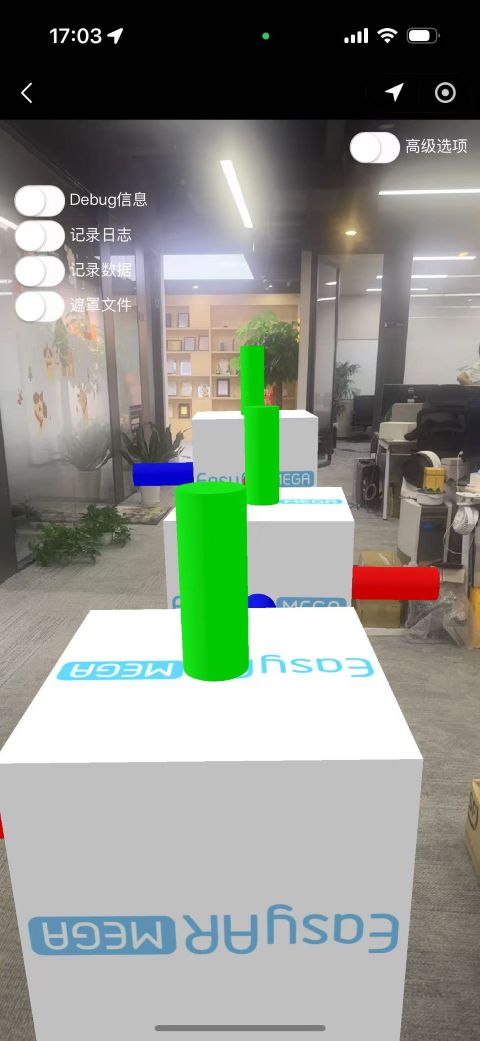
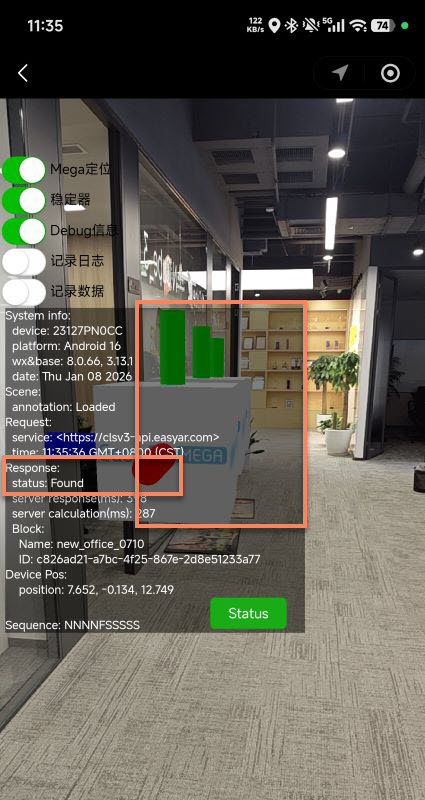
- Point the phone camera at an area with rich visual texture and wait for initialization and localization to complete. When localization succeeds,
statusinDebug informationshowsFound, and theStatusbutton in the lower-right corner turns green.
Tip
For other localization states such as Not Found and QpsLimitExceeded, controls, and steps for reporting abnormal data, see On-site verification and diagnostics tool.
Mask file
Note
The Block mapping version must be 9.6 or later. Check the mapping information on the Block details page.
Turn on Mask file on the localization page. Once a Block that supports mask files has been localized, the Mini Program loads and displays its mask mesh automatically. The ground and vertical surfaces appear in different colors, making it easier to check the alignment of seams and corners against the real environment.
Load and display the mask file:
Drag the opacity slider to adjust the mask mesh opacity from 0% to 100% and compare it with the real camera image.
Adjust mask file opacity:
[Optional] Annotation data
To view annotated content, select the annotation data package on the cloud localization database selection page before starting localization.
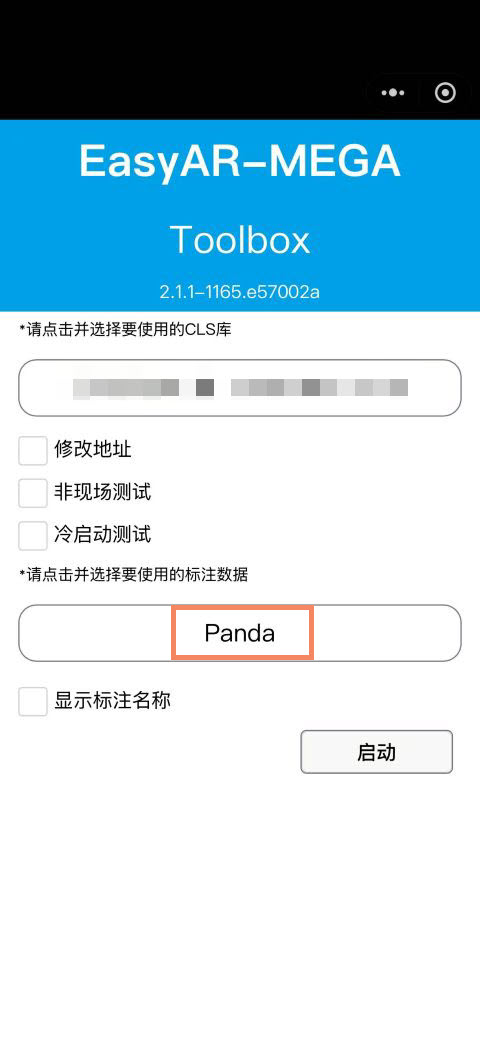
After successful localization, cubes created with Mega Studio appear at their corresponding real-world positions. Check their alignment with the environment and watch for jitter or drift as you move the phone. If anything looks wrong, see Abnormal tracking behavior.