Creating a laser acquisition task (its domain)
This article details the complete operational process of a laser acquisition task (its domain), including task creation, data uploading, and mapping process explanations, helping users standardize the entire operational process of their domain's laser acquisition mapping task.
Creating its domain acquisition task
After creating a project, click Manage to enter the mapping task management interface. Click the Its domain acquisition task button in the upper right corner, enter the task name in the pop-up dialog, select the mapping version and data format (recommended to use the latest version), and click Confirm add after filling in to create an its domain acquisition task.

Data preparation
Before starting a mapping task, it is necessary to ensure that the collected spatial data meets requirements and is organized and stored according to specifications. The following content details data acquisition and export.
Data acquisition and export
Use a laser scanner to acquire spatial data. For related device configuration and key acquisition points, please refer to:
Uploading data
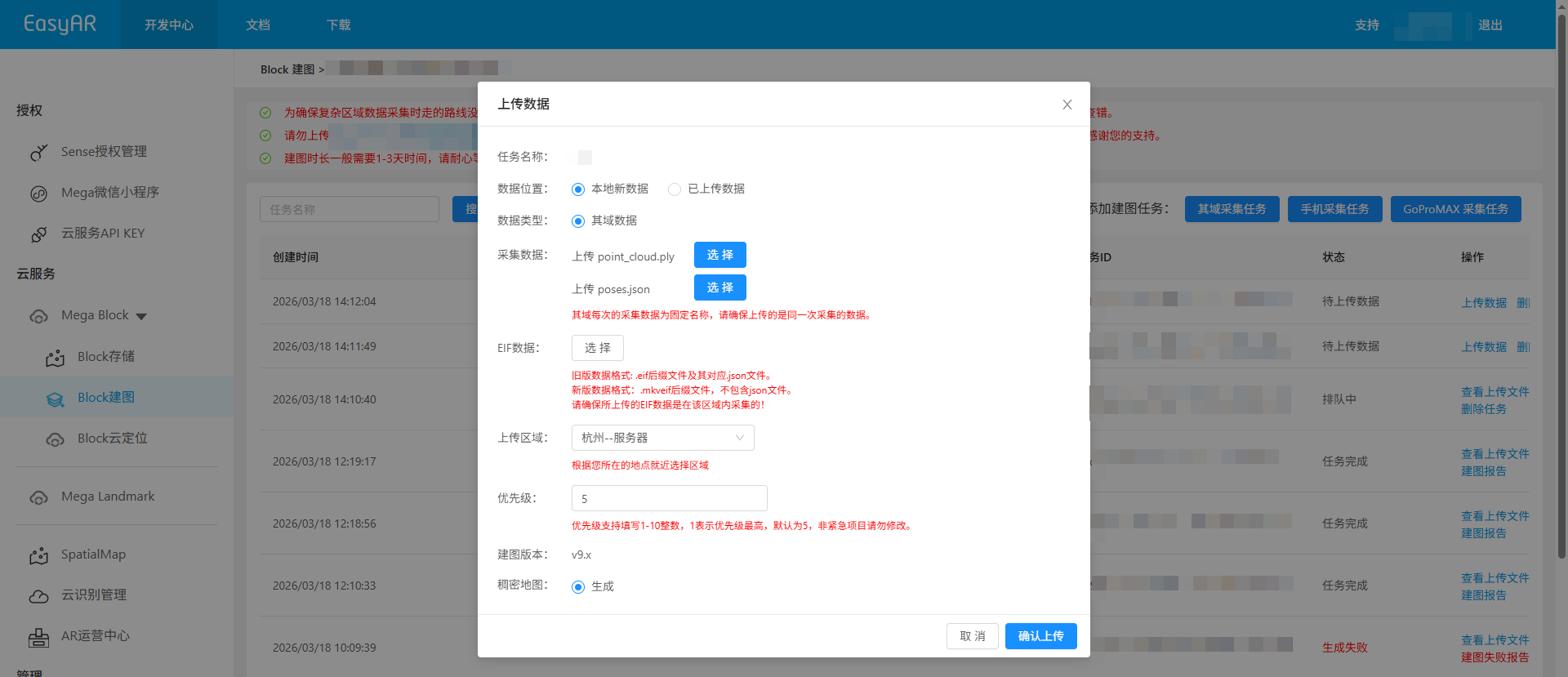
Click Upload data, and select the appropriate options in the pop-up window. For specific option descriptions, see below:

Data location
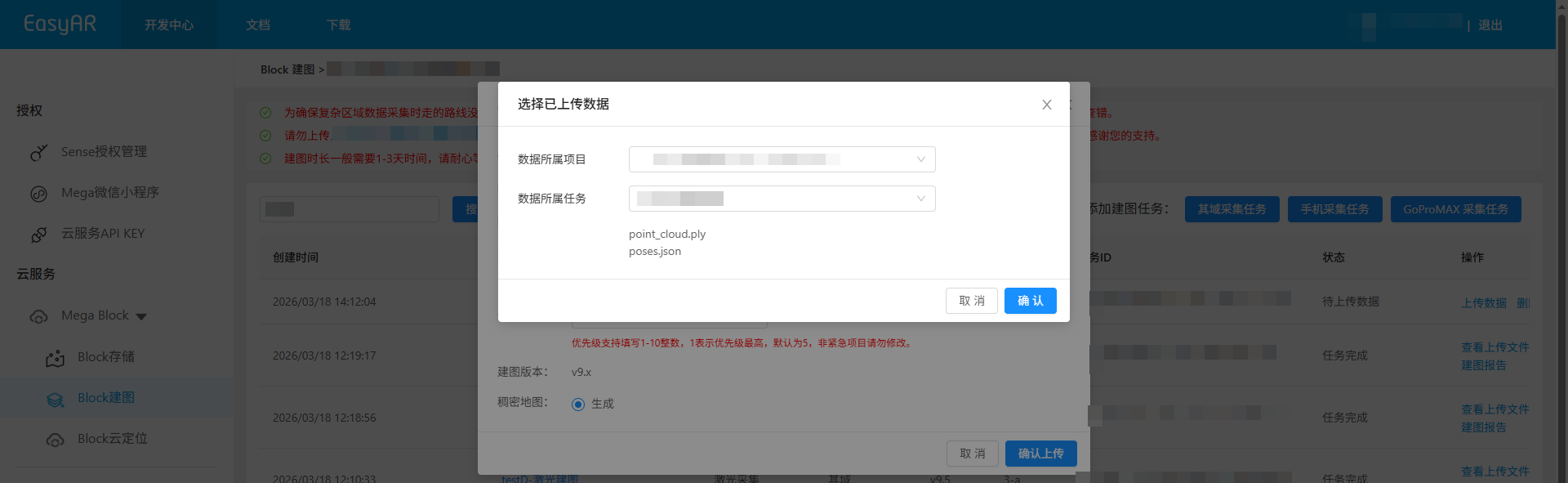
Depending on the data source, you can choose one of the following methods to upload data:
- Local new data
- Already uploaded data
Acquisition data
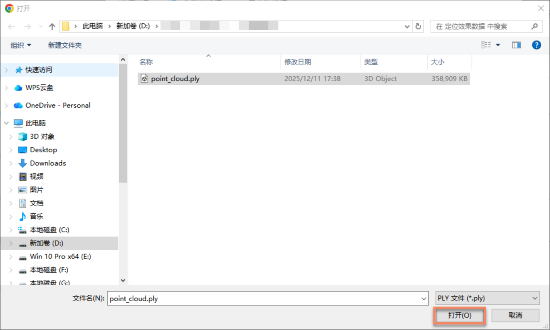
Upload the
point_cloud.plyfile, clickSelect, choose the specified file in the directory, and clickOpen.
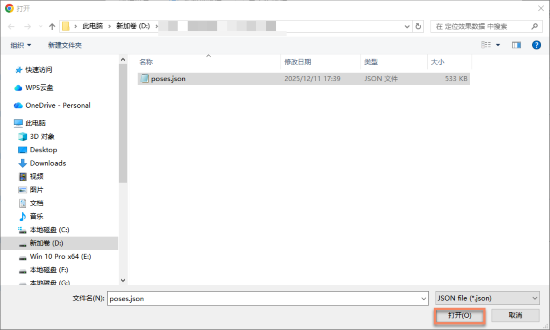
Upload the
poses.jsonfile, clickSelect, choose the specified file in the directory, and clickOpen.
참고
Its domain's acquisition data has a fixed name each time. Please ensure you are uploading data from the same acquisition session.
EIF data
- EIF data is specialized test data for remote debugging and simulation positioning in Mega, used for remote verification of Mega effects and supporting simulation positioning during remote development. It must be acquired using specified tools. For detailed acquisition methods, refer to the EIF data acquisition guide.
- EIF data is not mandatory in the upload data pop-up window. Supplemental uploading of EIF data is supported later.
- Note: When selecting EIF data collected via the Mega Toolbox mobile app, pay attention to the correspondence between EIF data and mapping video data. For example, if the mapping data is from level 1 of MetroCity, then the EIF data uploaded together should also be from level 1 of MetroCity.
Upload region
Select the nearest region based on the upload operator's location.
Confirm upload
- After clicking the
Confirm uploadbutton, the upload progress and status will be displayed in the list. - During data upload, keep your computer powered on and the network connection stable. Do not close the browser, refresh the page, or click other menus, otherwise the upload will be interrupted and require re-operation.
Starting mapping
After uploading is complete, the task will automatically enter Under review, as shown below.

Once approved, the task will automatically enter the mapping process, and the status will show as Queued or Generating, as shown below. Please wait patiently for the mapping to complete.

Auxiliary functions
The following functions can help you better manage and operate mapping tasks, improving work efficiency:
View uploaded files
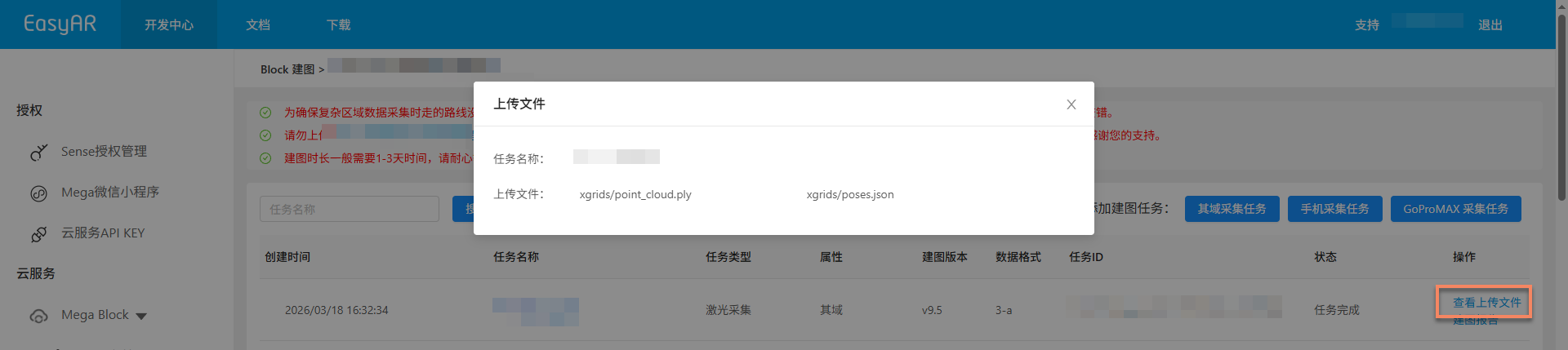
Click the View uploaded files button to view a list of all uploaded files in the pop-up window. Confirm whether files are fully uploaded to avoid mapping failures due to missing files.

Upload EIF
EIF data is specialized test data for remote debugging and simulation positioning in Mega, used for remote verification of Mega effects and supporting simulation positioning during remote development. It must be acquired using specified tools. For detailed acquisition methods, refer to the EIF data acquisition guide.
EIF upload steps:
Click the
Upload EIFbutton.
Select the EIF data directory folder, then click the
Confirm uploadbutton.
View uploaded data:
After upload is complete, click the View uploaded files button to view the uploaded EIF files in the pop-up window. Supports Download and Delete operations on files.

Stop mapping
If incorrect data is uploaded or the trajectory map data does not match the actual situation before the mapping task is completed, click the Stop mapping button, then click Confirm in the secondary confirmation pop-up to stop mapping.

Delete task
If the current mapping task fails or is no longer needed, click the Delete task button to delete it. Click Delete in the secondary confirmation pop-up to complete the deletion.

Confirm mapping results
Once the task enters the mapping process, you can use the Task status to determine whether the mapping task is completed. When the status shows Task completed or Generation failed, it means the mapping task has ended.

Mapping success
When the task status shows Task completed, it means mapping was successful and the mapping result has been generated. You can now further view the mapping result to confirm if it meets expectations.
View mapping results:
- Review acquisition route
- View mapping report
- View Block information
- Preview spatial model
- View 3D Gaussian splat data
Mapping failure
When the task status shows Generation failed, it means mapping failed. It is recommended to troubleshoot as follows:
- View mapping report: View mapping report, find solutions based on the report information.
- Refer to troubleshooting: Consult the Mapping failure troubleshooting guide for solutions to common problems.
- Contact technical support: If the above methods do not resolve the issue, contact EasyAR staff and provide the
JobIDfrom the mapping report for quick problem identification.